VFX Plugin
This section explains how to simulate camera images with visual effects using the VFX Vision Simulator.
Generating the Image View
Camera images with visual effects applied by the VFX Vision Simulator are displayed in the Image View. To open it, select View > Show View > Image from the main menu.
Generating the Image View Bar
The Image View Bar is used to select the camera you wish to simulate. To display it, select View > Show Toolbar > Image View Bar from the main menu.
Configuring the MultiCollider Item
The MultiCollider item defines the regions where visual effects are applied to the camera image. To create one, select File > New > MultiCollider from the main menu.
As a child of a World Item: When a link equipped with a camera enters the defined region, visual effects are applied to the camera image.
As a child of a Body Item: The MultiCollider moves in synchronization with the body, ensuring visual effects are constantly applied to that body's camera image.
Visual effects are configured by modifying the properties of the MultiCollider item. Select the MultiCollider in the Item Tree and adjust the parameters in the Property View. The available properties are as follows:
Parameter |
Default Value |
Unit |
Meaning |
|---|---|---|---|
Hue |
0 |
- |
Adjusts the hue (0.0 to 1.0). |
Saturation |
0 |
- |
Adjusts the saturation (0.0 to 1.0). |
Value |
0 |
- |
Adjusts the brightness/value (0.0 to 1.0). |
Red |
0 |
- |
Adjusts the intensity of the red channel (0.0 to 1.0). |
Green |
0 |
- |
Adjusts the intensity of the green channel (0.0 to 1.0). |
Blue |
0 |
- |
Adjusts the intensity of the blue channel (0.0 to 1.0). |
Distortion |
0 |
- |
Adjusts the degree of barrel distortion (-1.0 to 0.0). |
Magnification |
0 |
- |
Adjusts the magnification ratio (1.0 to 32.0). |
Std Deviation |
1 |
- |
Adjusts the intensity of Gaussian noise (0.0 to 1.0). |
White Noise Amount |
0 |
- |
Adjusts the amount of white noise in the image (0.0 to 1.0). |
White Noise Prob |
0 |
- |
Probability of white noise appearing in the image (0.0 to 1.0). |
Black Noise Amount |
0 |
- |
Adjusts the amount of black noise in the image (0.0 to 1.0). |
Black Noise Prob |
0 |
- |
Probability of black noise appearing in the image (0.0 to 1.0). |
Mosaic Prob |
0 |
- |
Probability of a mosaic effect appearing (0.0 to 1.0). |
Mosaic Size |
0 |
- |
Adjusts the block size of the mosaic effect (8 to 64). |
Shape |
Box |
- |
Specifies the shape of the region (Box/Cylinder/Sphere). |
Size |
1.0, 1.0, 1.0 |
m, m, m |
Specifies the XYZ size (only for Box). |
Radius |
1.0 |
m |
Specifies the radius (only for Cylinder/Sphere). |
Height |
1.0 |
m |
Specifies the height (only for Cylinder). |
Position |
0, 0, 0 |
m, m, m |
Specifies the XYZ position of the region. |
RPY |
0, 0, 0 |
deg |
Specifies the orientation (Roll, Pitch, Yaw). |
Diffuse Color |
0, 0, 0 |
- |
Specifies the RGB diffuse color of the region. |
Transparency |
0 |
- |
Specifies the transparency level. |
Creating and Configuring the VFX Vision Simulator
The VFX Vision Simulator item applies visual effects to camera images. It inherits from Choreonoid's standard GL Vision Simulator, combining image generation with effect processing.
Create a VFX Vision Simulator via File > New and place it as a child of the AIST Simulator.
Create a Sensor Visualizer via File > New and place it as a child of any Body item.
When a Sensor Visualizer is added, a CameraImageVisualizerItem is automatically generated for each camera on the body.
Check the box next to these items to register them in the Image View Bar's combo box.
注釈
The VFX Vision Simulator can apply multiple effects (HSV adjustment, RGB adjustment, distortion, magnification, Gaussian noise, salt-and-pepper noise, and mosaic). However, enabling all effects simultaneously may significantly increase the computational load, preventing the simulation from running in real-time.
Running the Simulation
Run the simulation as usual from the Simulation Bar. Select an Image View and choose a camera from the Image View Bar to display the feed.
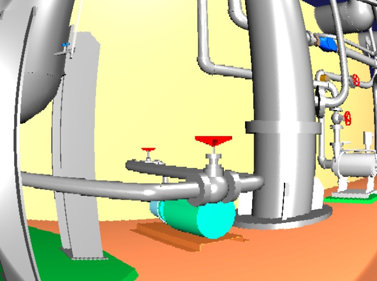
The following is an example of a camera image with Distortion set to -0.3 and Magnification set to 1.7: